![Humanitru-logo-green-horiz-lo-rez-web-main-RGB-3.png]](https://kbhelp.humanitru.com/hs-fs/hubfs/Humanitru-logo-green-horiz-lo-rez-web-main-RGB-3.png?height=40&name=Humanitru-logo-green-horiz-lo-rez-web-main-RGB-3.png)
Most nonprofit boards operate under a Give/Get policy — an expectation that every board member will either personally donate a set amount each year, raise that amount from others, or some combination of both. Tracking this commitment across a full board is difficult to do well: expectations vary by member, progress happens across months, and the fundraising activity board members conduct on your behalf is often invisible in your database.
Humanitru Pipelines give you a structured way to manage each board member's Give/Get cycle from orientation through fulfillment. By creating one Opportunity per board member per cycle, you can track where each person stands, log their fundraising activity, and measure your board's collective progress against the organization's goal.
This article walks you through how to set up and use a Board Give/Get Pipeline in Humanitru, with guidance on each stage and how to track your board's work throughout the giving cycle.
When to Use This GuideUse this guide when you want to:
- Set up a Pipeline to manage your board's annual Give/Get commitments
- Track the status of each board member's personal giving and fundraising activity
- Log actions such as orientation meetings, commitment conversations, solicitations, and fulfillment
- Understand how Humanitru's pipeline stages map to your board governance process
Read the Pipelines Overview & FAQs article before this one if you are new to Pipelines and want a foundational understanding of how the module works.
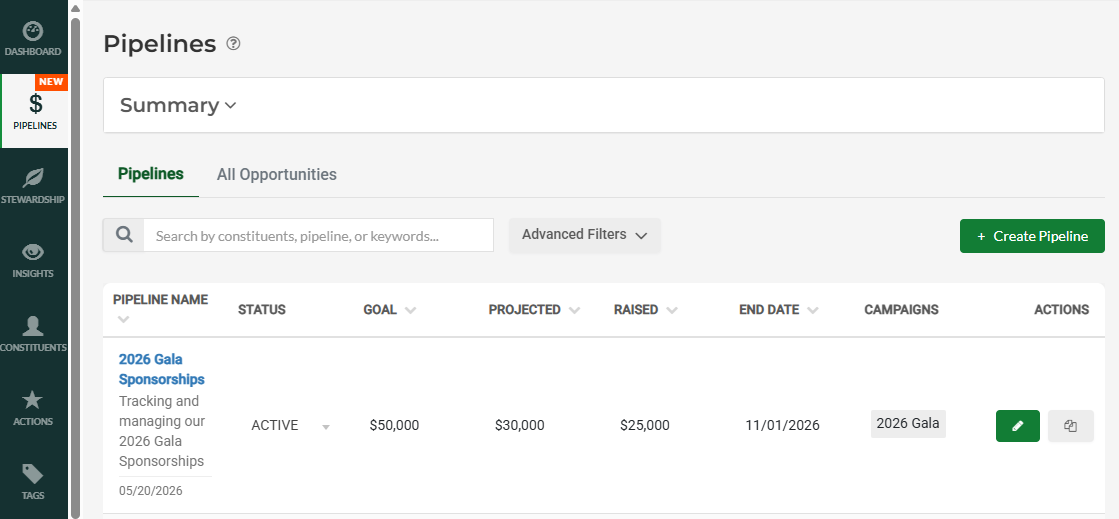
Step-by-Step InstructionsPart A: Navigate to Pipelines- Log in to Humanitru and click Pipelines in the left-hand navigation menu.
- The All Pipelines page loads. You will see two tabs: Pipelines (a summary view of all your Pipelines) and All Opportunities (a table of every individual Opportunity across all Pipelines).
- To create a new Board Give/Get Pipeline, click the green Create New Pipeline button in the top right corner.
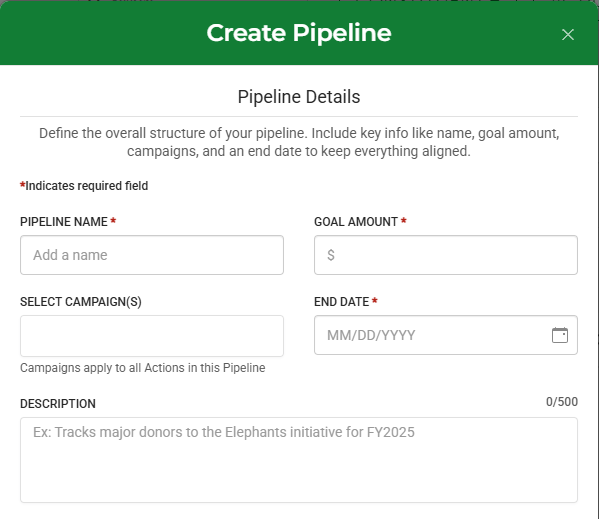
Fill out the Pipeline creation form with the following information:
- Pipeline Name — Give the Pipeline a name that identifies the board cycle. For example: “Board Give/Get FY2027” or “Board Giving Cycle 2027.” Names must be unique across your organization.
- Goal Amount — Enter the total amount your full board is expected to give or raise collectively. For example, if you have 15 board members each with a $5,000 Give/Get, your Pipeline goal would be $75,000.
- End Date — Enter the end of your fiscal year or the close date of the current board giving cycle. End dates must be in the future.
- Description (optional) — Add a brief description to distinguish this Pipeline from others, especially if you run multiple cycles or maintain separate Pipelines for different board committees.
- Campaigns (optional) — Associate relevant Campaigns with this Pipeline so that all Actions logged to its Opportunities are automatically tagged.
The stages below define the steps a board member moves through in a single Give/Get cycle. You can customize stage names to match your organization’s terminology and needs.
|
Stage |
What It Represents |
|---|---|
|
Board Orientation |
A new or prospective board member is in the onboarding phase. Use this stage to track board members who have not yet formally committed to a Give/Get goal for the current cycle. Log orientation meetings, introductory conversations, and expectation-setting sessions as Actions. |
|
Board Commitment |
The board member has acknowledged and agreed to their Give/Get obligation for the cycle. Move an Opportunity here once the member has confirmed their personal giving amount and/or their fundraising ask goal. Log the commitment conversation as an Action with notes on the agreed amounts. |
|
Solicitation |
The board member is actively soliciting gifts from their personal network on behalf of the organization. Use this stage to track members who are in the process of making asks. Log individual solicitations, introductions, and follow-ups as Actions to build a record of their fundraising activity. |
|
Stewardship(locked — always present, cannot be removed) |
The board member has fulfilled their Give/Get commitment for the cycle. This stage is locked in every Pipeline and cannot be removed. Use it to log thank-you outreach, recognition, and any year-end acknowledgment of the member's contribution to the fundraising effort. |
|
Declined(locked — always present, cannot be removed) |
The board member did not fulfill their Give/Get commitment, resigned from the board, or otherwise did not participate in the current cycle. This stage is locked in every Pipeline and cannot be removed. Moving an Opportunity here preserves the record without deleting it. |
Note: Stages can be reordered by dragging and dropping them during Pipeline setup. The Declined and Stewardship stages are fixed and will always appear regardless of order.
Part D: Add Board Member Opportunities to Your PipelineOnce the Pipeline is saved, add one Opportunity per board member per cycle. This gives each member their own record to track individually.
- From your Pipeline’s Overview or Opportunities tab, click Add Opportunity.
- Search for and select the board member as the constituent.
- Enter the Ask Amount equal to that member’s Give/Get obligation (their total give-plus-get target for the cycle). Use the Projected Amount to reflect your best estimate if the obligation is not yet formally confirmed.
- Assign the Opportunity to the staff member (such as the Executive Director or Board Liaison) responsible for this relationship.
- Set the initial stage. New board members will typically start in Board Orientation; returning members who have already been oriented can start in Board Commitment.
Actions are the record of everything that happens between your organization and a board member in their Give/Get cycle. Log Actions consistently so your staff always knows where each member stands.
Common board Give/Get Actions to log:
- Board orientation meeting — log with the date and notes on Give/Get expectations discussed
- Give/Get commitment confirmed — log the date the member acknowledges their obligation; move to Board Commitment
- Personal gift received — log as a verified Donation Action to begin populating the Actual Amount field
- Prospect introduced or ask made on behalf of the organization — log as a solicitation Action with the prospect name and amount requested in the notes
- Gift secured through board member’s network — log as a verified Donation Action; this counts toward their Get total
- End-of-cycle check-in — log a meeting or call Action when reviewing overall progress with the member
- Thank-you or recognition sent — log when moving into Stewardship
Future-dated Actions are marked Unverified and excluded from summary statistics until the date passes and a user manually verifies them. Past-dated Actions are auto-verified.
You can add Actions directly on the Opportunity or you can add existing Actions to an Opportunity by applying the Opportunity ID Campaign.
How Give vs. Get is TrackedHumanitru does not separate Give and Get into distinct fields on an Opportunity, but you can track both types of activity through Actions:
|
Activity Type |
How to Record It |
|---|---|
|
Board member’s personal gift (Give) |
Log as a verified Donation Action on the board member’s Opportunity. The amount will count toward the Pipeline’s Actual Amount total. |
|
Gift secured from board member’s network (Get) |
Log as a verified Donation Action on the board member’s Opportunity with a note identifying the donor. You may also wish to log the gift separately on the donor’s own constituent record. |
|
Pending solicitation (ask made, gift not yet received) |
Log as a future-dated Donation Action or a meeting/notes Action. The amount will remain Unverified and excluded from totals until the gift is received and verified. |
Pro Tips / Common Mistakes
|
★ Create a new Pipeline for each fiscal year or giving cycle. Reusing the same Pipeline across cycles muddies your historical data and makes it impossible to compare board performance year over year. ★ Set the Ask Amount to the full Give/Get obligation, not just the personal gift portion. This ensures your Pipeline goal reflects the board’s total expected contribution, including funds they raise from others. ★ Log gifts brought in by board members as Donation Actions — not just notes. Only verified Donation Actions populate the Actual Amount field, which drives your Pipeline’s progress totals. ★ Don’t skip the Board Orientation stage for new members. Starting Opportunities in Orientation ensures new board members are tracked from the moment they join and that your Pipeline reflects who has and hasn’t yet confirmed their commitment. ★ Move members to Declined rather than deleting their Opportunity. If a board member resigns or does not fulfill their obligation, Declined preserves the record and keeps your Pipeline data accurate. Deletion is only possible if no Actions exist. ★ Use the Description field on each Opportunity to note the board member’s specific Give/Get breakdown (e.g., “Committed: $2,500 Give + $2,500 Get”), especially when obligations vary by member. |