![Humanitru-logo-green-horiz-lo-rez-web-main-RGB-3.png]](https://kbhelp.humanitru.com/hs-fs/hubfs/Humanitru-logo-green-horiz-lo-rez-web-main-RGB-3.png?height=40&name=Humanitru-logo-green-horiz-lo-rez-web-main-RGB-3.png)
Humanitru Pipelines give your organization a structured, purpose-built way to manage event sponsorships from first outreach through payment, materials collection, and post-event stewardship. Rather than tracking sponsor commitments across spreadsheets, email threads, and campaign tags, Pipelines centralize everything related to a single sponsorship opportunity in one place — with clear stages, assigned owners, logged actions, and running totals toward your sponsorship goal.
This article walks you through how to set up and use a Sponsorship Pipeline in Humanitru, with guidance on each stage and how to track your team's work throughout the sponsorship lifecycle.
When to Use This GuideUse this guide when you want to:
- Set up a Pipeline to manage corporate or individual event sponsorships
- Track the status of sponsorship asks across your team
- Log actions such as initial outreach, agreement delivery, payment receipt, and materials collection
- Understand how Humanitru's pipeline stages map to your real-world sponsorship process
Read the Pipelines Overview & FAQs article before this one if you are new to Pipelines and want a foundational understanding of how the module works.
Step-by-Step Instructions - Part A: Navigate to Pipelines- Log in to Humanitru and click
- Log in to Humanitru and click Pipelines in the left-hand navigation menu.
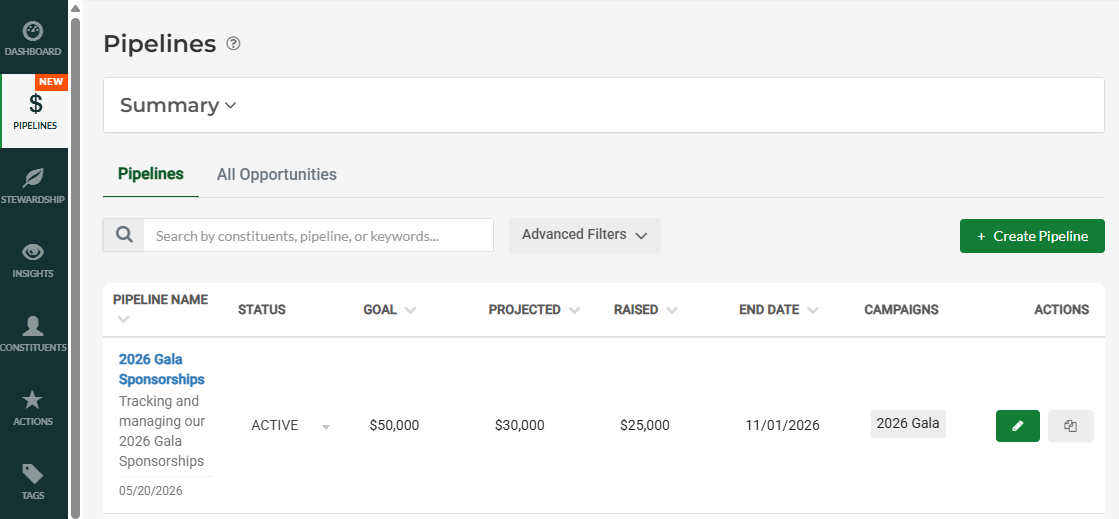
- The All Pipelines page loads. You will see two tabs: Pipelines (a summary view of all your Pipelines) and All Opportunities (a table of every individual Opportunity across all Pipelines).
- To create a new Sponsorship Pipeline, click the green Create New Pipeline button in the top right corner.
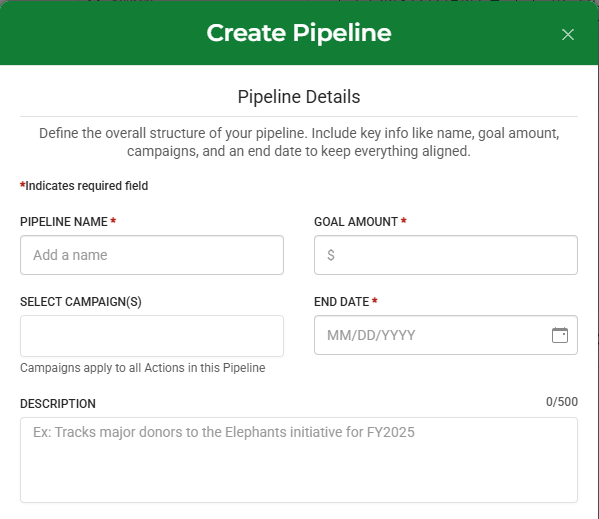
Fill out the Pipeline creation form with the following information:
- Pipeline Name — Give the Pipeline a name that identifies the event or sponsorship program. For example: “Annual Gala Sponsorships 2027” or “Golf Sponsors 2028.” Names must be unique across your organization.
- Goal Amount — Enter the total sponsorship revenue you are seeking for this event. This becomes the benchmark for tracking progress.
- End Date — Enter the event date or the close date for your sponsorship campaign. End dates must be in the future.
- Description (optional) — Add a brief description to distinguish this Pipeline from others, especially useful if you manage multiple events at once.
- Campaigns (optional) — Associate relevant Campaigns with this Pipeline so that all Actions logged to its Opportunities are automatically tagged.
When you configure your Pipeline’s stages, you define the steps a sponsorship opportunity moves through from initial outreach to post-event stewardship. The table below describes suggested stages. You can customize stage names to match your organization’s terminology and needs.
|
Stage |
What It Represents |
|---|---|
|
Sponsorship Ask |
The first outreach to a prospective sponsor. Use this stage when you have identified a potential sponsor and are making the initial ask. Log the outreach as an Action with notes on the amount requested and any conversation details. |
|
Sponsorship Agreement Sent |
A sponsorship agreement or contract has been drafted and sent to the sponsor for review and signature. Move an Opportunity here once the agreement is in their hands. Log the send date as an Action. |
|
Sponsorship Paid |
The sponsor has fulfilled their financial commitment. Move the Opportunity here once payment is received and confirmed. Log the payment as a verified Donation Action to populate the Actual Amount field and reflect the gift in your Pipeline totals. |
|
Stewardship (locked — always present, cannot be removed) |
The sponsorship is complete and your organization is maintaining the relationship with the sponsor. This stage is locked in every Pipeline and cannot be removed. Use it to track thank-you touchpoints, recognition fulfillment, and ongoing stewardship activities. |
|
Declined (locked — always present, cannot be removed) |
The prospect declined to sponsor or did not respond after sufficient follow-up. This stage is locked in every Pipeline and cannot be removed. Moving an Opportunity here preserves the record without deleting it. |
|
Sponsorship Materials Pending |
The sponsor has committed or paid, but has not yet delivered the assets your organization needs (such as logos, ad copy, or promotional content). Use this stage to flag Opportunities awaiting materials. Log a follow-up Action to track the outstanding request. |
|
Sponsorship Materials Received |
All required sponsor materials have been received and are ready for use in event production. Move Opportunities here once the assets are confirmed and on file. |
Note: Stages can be reordered by dragging and dropping them during Pipeline setup. The Declined and Stewardship stages are fixed and will always appear regardless of order.
Part D: Add Sponsorship Opportunities to Your PipelineOnce the Pipeline is saved, you are ready to add individual Opportunities — one per sponsor or sponsorship package.
- From your Pipeline’s Overview or Opportunities tab, click Add Opportunity.
- Search for and select the constituent (company or individual) you are asking to sponsor the event.
- Enter the Ask Amount (the sponsorship level you are requesting) and, if known, a Projected Amount (your team’s best estimate of what will come in).
- Assign the Opportunity to the staff member responsible for managing this sponsor relationship.
- Set the initial stage. Most new sponsorship outreach will start in Sponsorship Ask.
Actions are the heartbeat of an Opportunity — they record every meaningful touchpoint in the sponsor relationship. As your sponsorship moves through stages, log Actions to build a complete audit trail.
Common sponsorship-related Actions to log:
- Initial outreach or phone call — log with the date and any notes on the conversation
- Sponsorship agreement sent — log with the send date and a copy of the agreement if available
- Follow-up reminder — log as a future-dated Action to prompt your team to check in
- Payment received — log as a verified Donation Action to populate the Actual Amount field
- Decline received — log the date and move the Opportunity to Declined
- Materials requested — log when moving into Sponsorship Materials Pending
- Materials received — log with the date and move the Opportunity to Sponsorship Materials Received
- Thank-you sent or recognition fulfilled — log when moving into Stewardship
Future-dated Actions are marked Unverified and excluded from summary statistics until the date passes and a user manually verifies them. Past-dated Actions are auto-verified.
You can add Actions directly on the Opportunity or you can add existing Actions to an Opportunity by applying the Opportunity ID Campaign.
Pro Tips / Common Mistakes|
★ Create one Pipeline per event, not one Pipeline per sponsor. This keeps your goal amounts and summary statistics meaningful. ★ Log payment as a Donation Action — not just a note. Only verified Donation Actions populate the Actual Amount field, which drives your Pipeline’s fundraising totals. ★ Use the Sponsorship Materials Pending stage actively. Collecting logos and ad copy from sponsors is one of the most common places event timelines break down. A dedicated stage makes it visible. ★ When a sponsor declines, move the Opportunity to Declined rather than deleting it. Deleting is only possible if no Actions exist, and you want to preserve the history for future outreach planning. ★ Use the Description field on each Opportunity to capture the specific sponsorship package or benefit level (e.g., “Gold Sponsor — $10,000”), especially when a single organization has multiple open opportunities. ★ Move sponsors into Stewardship after the event, not just after payment. Post-event acknowledgment and benefit fulfillment are essential to retaining sponsors year over year. |