![Humanitru-logo-green-horiz-lo-rez-web-main-RGB-3.png]](https://kbhelp.humanitru.com/hs-fs/hubfs/Humanitru-logo-green-horiz-lo-rez-web-main-RGB-3.png?height=40&name=Humanitru-logo-green-horiz-lo-rez-web-main-RGB-3.png)
OVERVIEW
The Bulk Uploader in Humanitru allows you to update large groups of constituent records at once by uploading a CSV spreadsheet. Instead of editing records one by one, you can prepare a list of constituents and apply changes — such as adding a tag — to hundreds or thousands of records in a single upload.
This guide specifically covers how to use the Bulk Uploader to apply the tag "Exclude from Data Hygiene" to a list of constituent accounts. After completing this guide, all matched constituents in your spreadsheet will have that tag applied to their records.
WHEN TO USE THIS GUIDE
Use this guide when you need to:
- Apply the "Exclude from Data Hygiene" tag to a large group of constituents at once
- Update constituent records in bulk — updating a field, adding a tag, or making other mass changes from a spreadsheet
- Import or update a list of constituents exported from another system or data source
- Mark a group of constituents as excluded from automated data hygiene processes
STEP-BY-STEP INSTRUCTIONS
Part A: Prepare Your CSV Spreadsheet
Before uploading, you need to create a CSV file with the correct columns. This file will tell Humanitru which constituents to update and what tag to apply.
Step 1. Open a new spreadsheet in Excel, Google Sheets, or any similar program.
Step 2. In Row 1 (the header row), create two columns: one labeled Email or ID (depending on how you want to match constituents), and one labeled Tag.
Step 3. Starting in Row 2, fill in each constituent's email address (or Humanitru ID) in the first column. In the second column (Tag), enter exactly: Exclude from Data Hygiene — repeat this value for every row.
Step 4. Once complete, save the file as a CSV (.csv) format. In Excel, choose File > Save As and select CSV (Comma-delimited). In Google Sheets, go to File > Download > Comma Separated Values (.csv).
Part B: Open the Bulk Upload Tool
The Bulk Upload tool is accessed from the user profile dropdown menu in the top-right corner of any page in Humanitru.
Step 1. In the top-right corner of any Humanitru page, click on your name (e.g., "Chris Collins") to open the user dropdown menu.
Step 2. From the dropdown menu, click “Bulk Upload.” The Bulk Upload modal window will open.
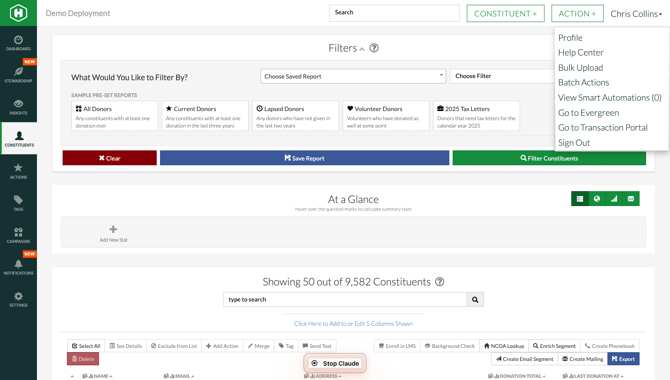
The user profile dropdown in the top-right corner shows “Bulk Upload” as one of the menu options.
Part C: Configure Upload Settings
With the Bulk Upload modal open, configure the settings on the left side panel before uploading your file.
Step 1. Under “Upload Type,” click “ONLY CONSTITUENTS” (this is the default and correct option for updating constituent tags).
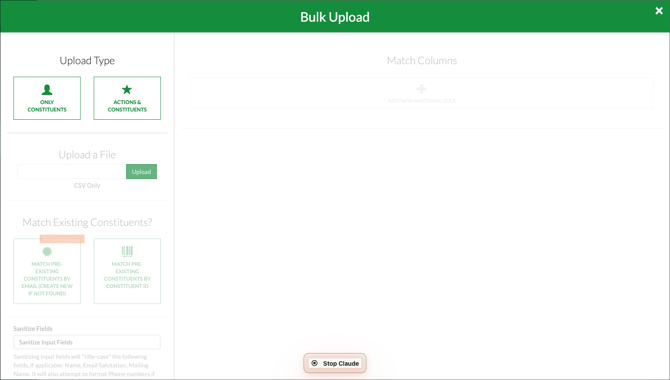
The Bulk Upload modal showing Upload Type (Only Constituents selected), Upload a File, and Match Existing Constituents settings, with the Match Columns panel on the right.
Step 2. Under “Upload a File,” click “Choose File” and select the CSV file you prepared in Part A. Then click “Upload.” A confirmation will appear once the file is loaded.
Step 3. Under “Match Existing Constituents?”, select “MATCH PRE-EXISTING CONSTITUENTS BY EMAIL (CREATE NEW IF NOT FOUND)” — this is the recommended option. If your spreadsheet uses Constituent ID instead of email, choose the second option.
Step 4. In the “Match Columns” panel on the right, click “+ ADD NEW MATCHING RULE.” A new row will appear with dropdowns for Source, Selected Spreadsheet Column(s), and Destination Alpine Field.
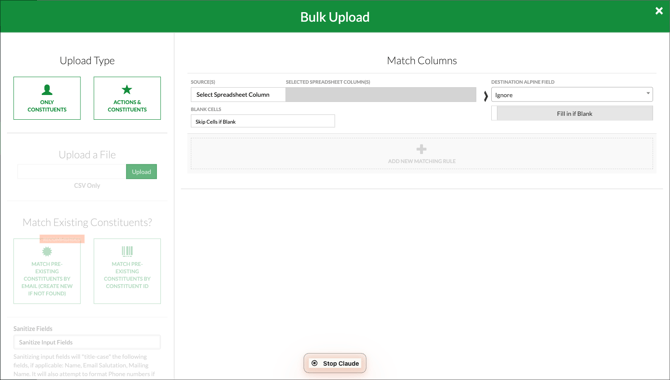
The Match Columns panel after clicking “+ ADD NEW MATCHING RULE,” showing the Source(s) dropdown, Selected Spreadsheet Column(s) field, and Destination Alpine Field dropdown where you will select “[System] Needs Review.”
Step 5. In the “SOURCE(S)” dropdown of the new matching rule, select the column from your spreadsheet that contains the tag value (e.g., “Tag”). In the “DESTINATION ALPINE FIELD” dropdown on the right, scroll down and select “[System] Needs Review.”
Part D: Preview and Finalize the Upload
Step 1. Click “Preview Upload” at the bottom of the left panel. Humanitru will process your file and show you a preview of the changes that will be made, including which constituents will be matched and the tag that will be applied.
Step 2. Review the preview results carefully. Verify that the correct constituents are being matched and that the tag “Exclude from Data Hygiene” is mapped to the correct destination field.
Step 3. Once satisfied with the preview, click “Finalize Upload.” The system will apply the tag to all matched constituents. You will receive a confirmation once the upload is complete.
PRO TIPS / COMMON MISTAKES
Pro Tip — Always use "Preview Upload" before finalizing. This lets you catch mismatches or formatting issues before any changes are applied to your live data.
Pro Tip — When using "Match by Email," make sure email addresses in your CSV exactly match the emails stored in Humanitru (including formatting). Mismatches will result in new constituent records being created instead of updating existing ones.
Common Mistake — Uploading an Excel file (.xlsx) instead of a CSV. The Bulk Uploader only accepts .csv files. Always export/save your spreadsheet as CSV before uploading.
Common Mistake — Entering the tag value incorrectly in your CSV. The tag value must match exactly as it appears in Humanitru, including brackets and capitalization: [System] Needs Review: Exclude from Data Hygiene.