![Humanitru-logo-green-horiz-lo-rez-web-main-RGB-3.png]](https://kbhelp.humanitru.com/hs-fs/hubfs/Humanitru-logo-green-horiz-lo-rez-web-main-RGB-3.png?height=40&name=Humanitru-logo-green-horiz-lo-rez-web-main-RGB-3.png)
Pin the stats you check most so they're visible without expanding anything. Pinned stats appear as tiles at the top of the At-A-Glance card.
Pins are personal. Your pinned stats apply to every constituent profile you open, and other users in your organization don't see them. This is different from Pinned Notes, which are shared across your organization.
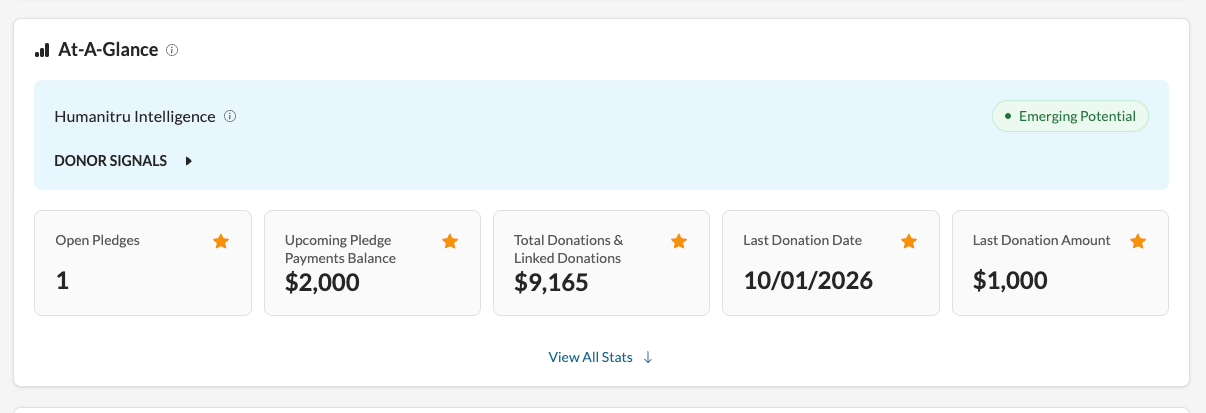
You can pin any stat in the At-A-Glance card. Stats are grouped into six sections: Overview Statistics, Events & RSVP, Donations & Engagement, Membership, Pledges, and Volunteer.
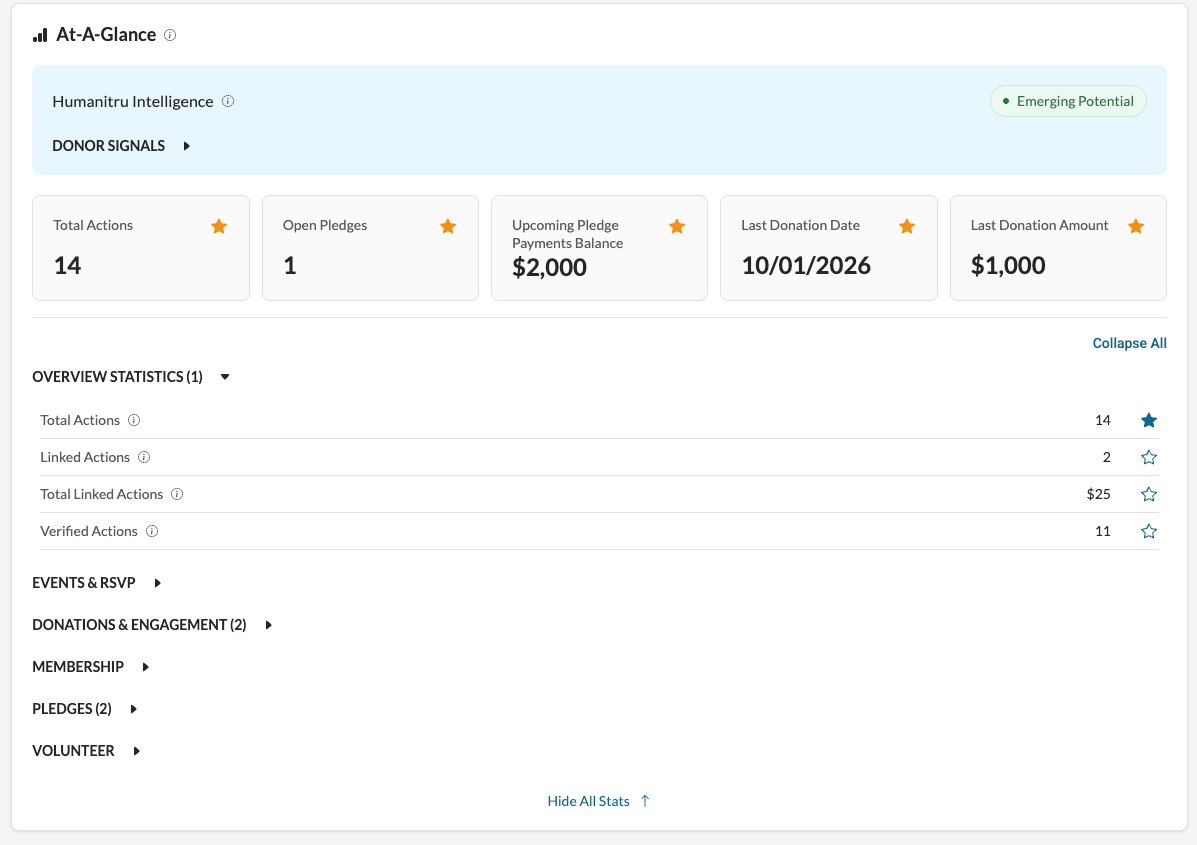
Pin a stat- On the At-A-Glance card, select View All Stats.
- Expand a group, such as Overview Statistics.
- Select the outline star next to the stat.
The stat appears as a tile at the top of the card. It also stays in its group, where its star turns filled and blue. A number next to a group name, such as Overview Statistics (1), shows how many of that group's stats you've pinned.
Select the gold star on the stat's tile, or the filled star next to the stat in its group.
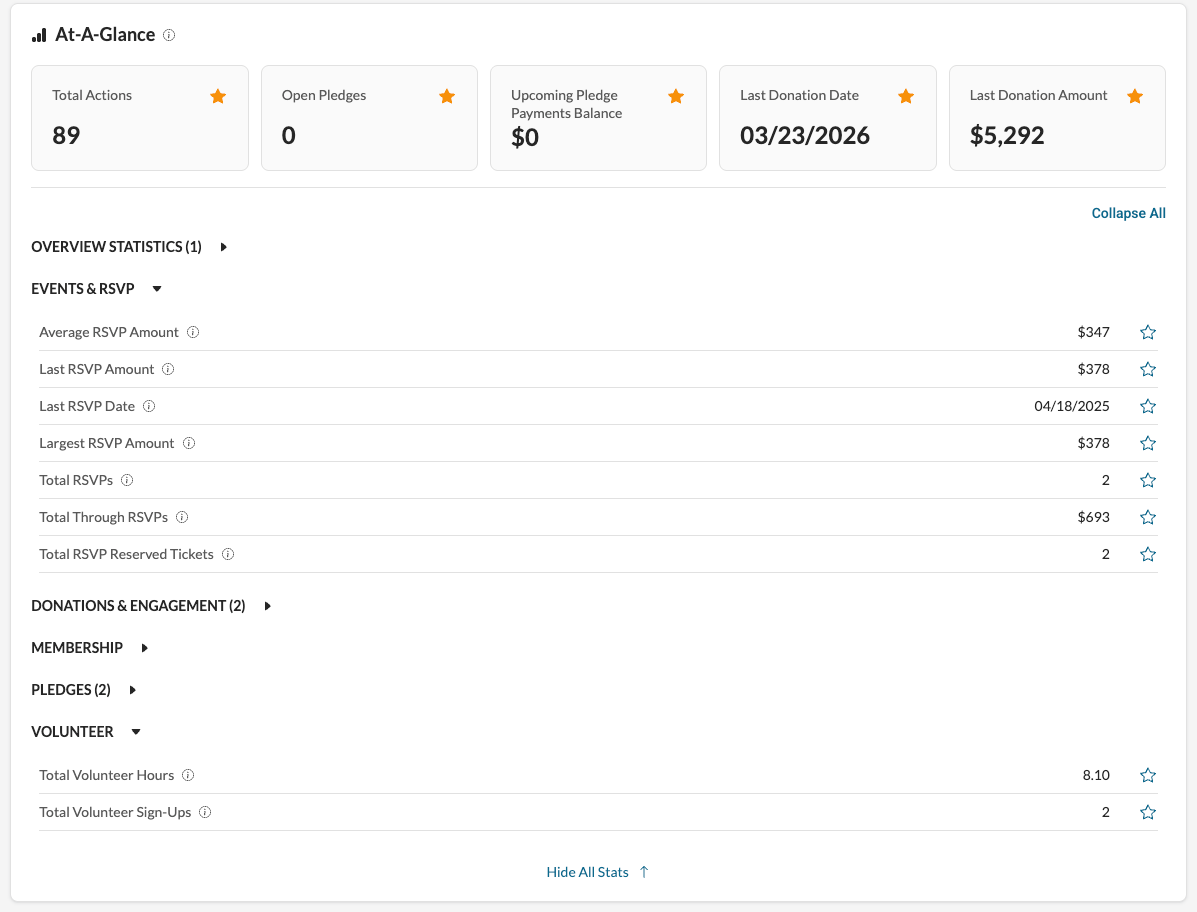
Show and hide stat groupsSelect View All Stats to show the stat groups, and Hide All Stats to collapse them back to the tiles. Expand All opens every group, and Collapse All closes them.
The tile area shows as many tiles per row as fit your screen. When you've pinned many tiles, the card shows the first rows and View All Stats reveals the rest.
How stat values appear- Dollar amounts are shown in whole dollars, such as $1,250.
- Stats round up - a total of $1249.65 will show as $1250 in the widget.
- Volunteer hours show two decimal places.
- Dates appear as MM/DD/YYYY. The exception is Last Contact, which shows how long ago it was, such as "9 months ago."
- A stat with a value of zero shows $0 or 0. A stat with no value yet, such as a first donation date for a constituent with no donations, shows N/A.
Stat values are calculated from the constituent's actions and update each time you open the profile. Most stats count verified actions only. Select the info icon next to a stat in its group to see what it includes.
Stats and the Action Timeline
Pinned stat values match the filters on the Action Timeline. When you apply filters (action type, action date, input date, verification status, created by, assigned to, amount, or campaign and category rules), the stat tiles and groups recalculate to match. Select Clear All on the Action Timeline to see values for the constituent’s full history.
Which actions stat values includeYour role determines which actions your stats are based on. Donation, membership, RSVP, and pledge stats are transaction stats.
|
Admin |
Member |
Entry Only |
Entry Only Plus |
|
|---|---|---|---|---|
|
Transaction stats (donations, memberships, RSVPs, pledges) |
All actions |
All actions |
Only actions you entered |
Not available |
|
All other stats |
All actions |
All actions |
Only actions you entered |
All actions from all users |
For Entry Only Plus users, transaction stats aren't available. They show N/A or $0 even if the constituent has donations, memberships, RSVPs, or pledges. These values don't mean the constituent has no giving or membership history.
Order and limits- There's no limit to how many stats you can pin.
- The most recently pinned stat appears first.
- You can't drag tiles to reorder them. To move a stat to the front, unpin it and pin it again.
|
Admin |
Member |
Entry Only |
Entry Only Plus |
|
|---|---|---|---|---|
|
See pinned stats |
Yes |
Yes |
Yes |
Yes |
|
Pin or unpin stats |
Yes |
Yes |
Yes |
Yes |
- Pinning a stat copies it. The stat stays in its group and also appears as a tile.
- Pins aren't included in reports or exports.
- If you see "Could not update your pinned stats. Please try again.", select the star again.