![Humanitru-logo-green-horiz-lo-rez-web-main-RGB-3.png]](https://kbhelp.humanitru.com/hs-fs/hubfs/Humanitru-logo-green-horiz-lo-rez-web-main-RGB-3.png?height=40&name=Humanitru-logo-green-horiz-lo-rez-web-main-RGB-3.png)
Pin the fields you check most so they're easy to find. Pinned fields appear at the top of the Profile Details card, right below Basic Details.
Pins are personal. Your pinned fields apply to every constituent profile you open, and other users in your organization don't see them. This is different from Pinned Notes, which are shared across your organization. 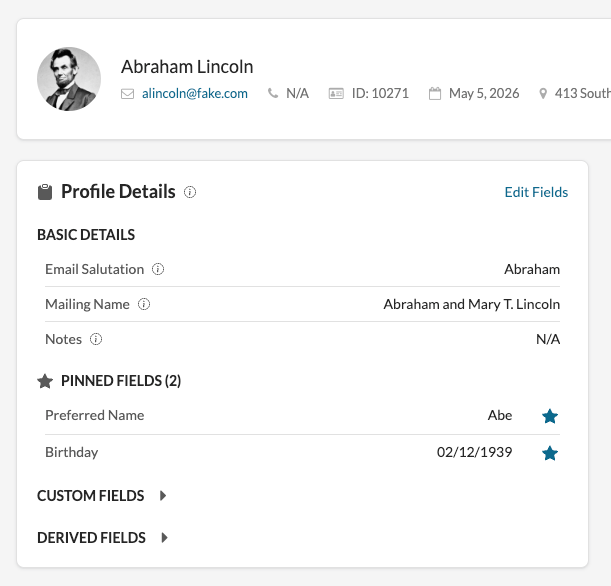
You can pin any field in the Custom Fields or Derived Fields sections of Profile Details, including locked custom fields. Derived fields include details such as City, State, and Zip.
The fields under Basic Details, such as Full Name, Email, and Phone, can't be pinned. They always appear at the top of the card.
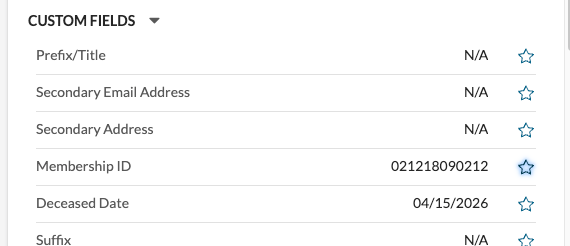
Pin a field- On the Profile Details card, expand Custom Fields or Derived Fields.
- Select the outline star next to the field you want to pin.
The field moves into Pinned Fields. The heading shows how many fields you've pinned, such as Pinned Fields (2).
Pin fields from Edit Fields
- Select Edit Fields at the top of the card.
- Open the Custom Fields or Derived Fields tab.
- Select the star next to the field.
The Base Fields tab doesn't have stars, because Basic Details can't be pinned. Pins you make in the Edit Fields window save right away. If you select Cancel, the pins you made stay in place.
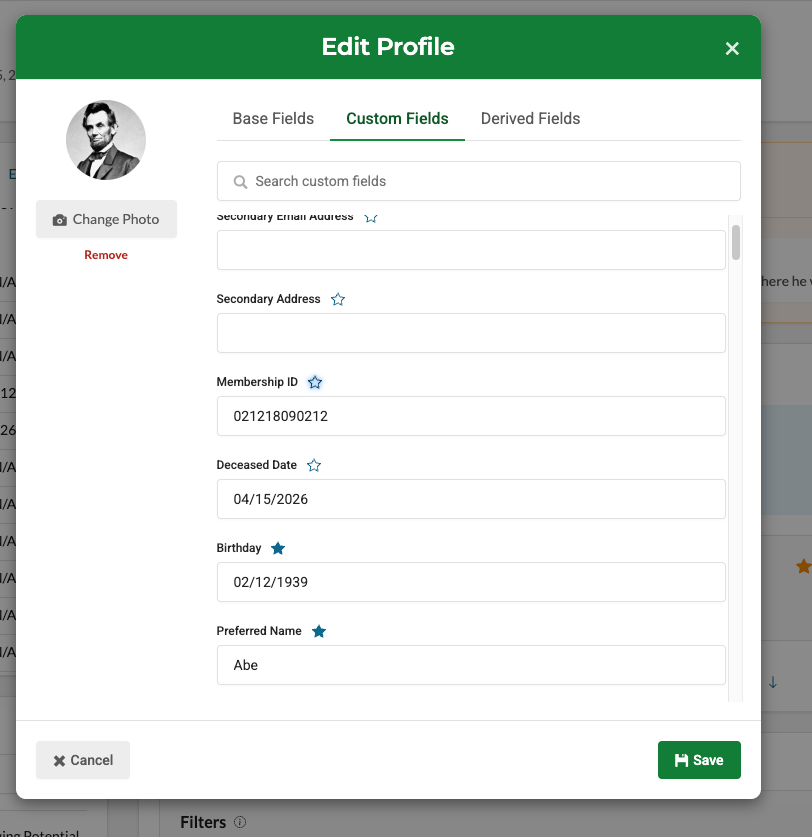
Only Admin and Entry Only users can use Edit Fields. Every role can pin and unpin from the card itself.
Unpin a fieldIn Pinned Fields, select the filled star next to the field. The field returns to its original section, either Custom Fields or Derived Fields.
How pinned field values appear- Empty fields show N/A.
- Email addresses are links that open a new message.
- Web addresses that start with http or https are links that open in a new tab.
- Long values are shortened to two lines. Select View Full Note to read the full value.
You can't edit a value from Pinned Fields. To change a value, use Edit Fields.
Order and limits- There's no limit to how many fields you can pin.
- The most recently pinned field appears first.
- You can't drag pinned fields to reorder them. To move a field to the top, unpin it and pin it again.
|
Admin |
Member |
Entry Only |
Entry Only Plus |
|
|---|---|---|---|---|
|
See pinned fields |
Yes |
Yes |
Yes |
Yes |
|
Pin or unpin from the card |
Yes |
Yes |
Yes |
Yes |
|
Pin or unpin in Edit Fields |
Yes |
No |
Yes |
No |
- Pinning a field moves it. A pinned field leaves its Custom Fields or Derived Fields section and appears in Pinned Fields instead.
- Deleting a custom field removes its pin. If an admin deletes a custom field, it's removed from everyone's Pinned Fields.
- Pins aren't included in reports or exports.
- If you see "Could not update your pinned fields. Please try again.", select the star again.