![Humanitru-logo-green-horiz-lo-rez-web-main-RGB-3.png]](https://kbhelp.humanitru.com/hs-fs/hubfs/Humanitru-logo-green-horiz-lo-rez-web-main-RGB-3.png?height=40&name=Humanitru-logo-green-horiz-lo-rez-web-main-RGB-3.png)
When creating Pinecone pages for clients, it's important to configure their fraud protection settings. That includes setting up automatic email notifications that are sent when a high volume of (successful) transactions occur for any given client (More than 10 transactions in 5 minutes in a 24-hour period). The subject line of the email will be:
Subject: Warning: High Transaction Volume
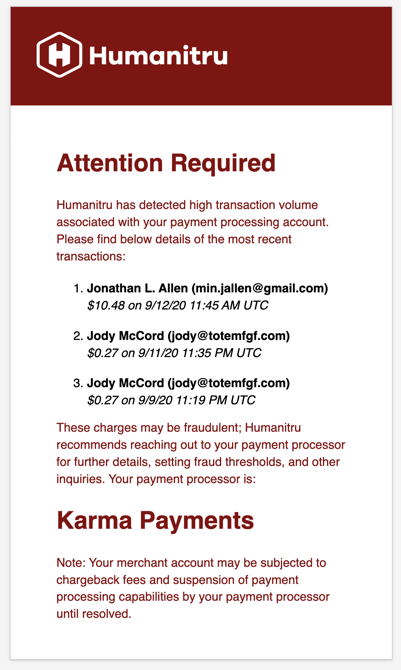
To set up Pinecone fraud notification emails for clients, follow these steps.
- Go to https://pinecone.humanitru.com.
- Use the dropdown at the top of the screen to find the clients Pinecone pages.
- Under Client Options, find the field titled FRAUD NOTIFICATION EMAIL(S).
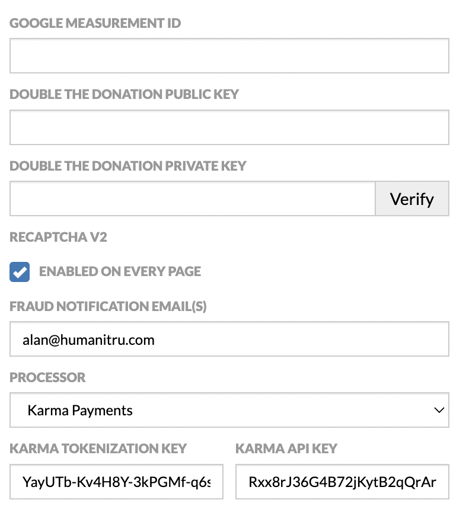
- Type in the list of client emails that you would like to be notified when fraud protections are triggered. You can enter as many emails as you want, just remember that emails must be separated by a comma.
NOTE: It is a recommended best practice that fraud email notifications be set for every client and required as part of client onboarding.