Managing User Roles and Permissions
Overview
Control what each team member can do in Humanitru by assigning roles and permissions. This guide covers role management and permission configuration.

Permissions control access to specific features and data:
- View Constituents: Can view constituent records
- Edit Constituents: Can create and edit constituent records
- Record Gifts: Can add and edit gift records
- Manage Campaigns: Can create and configure campaigns
- Manage Reports: Can create and run reports
- Manage Tags: Can create and edit tags
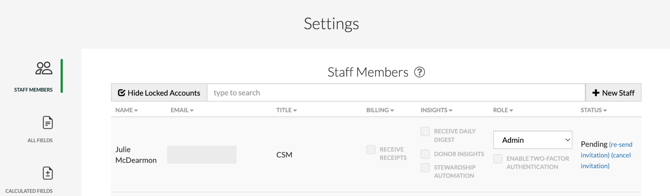
- Manage Users: Can add/remove staff and assign roles
- Access Settings: Can modify system settings
- Navigate to Settings > Roles and Permissions
- Click on a role to view its permissions
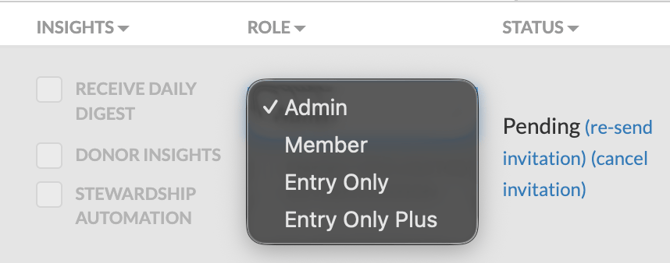
Role Details and Permissions
- Review which permissions are enabled (checkmark) and disabled
- Click "Edit" to modify the role
- Navigate to Settings > Roles and Permissions
- Click "Create Custom Role"
- Enter role name (e.g., "Grant Manager")
- Enter role description
- Select permissions for this role by checking/unchecking boxes
- Review the permission set for completeness
- Click "Create Role"
- Navigate to Settings > Roles and Permissions
- Click on the role to modify
- Click "Edit"
- Check/uncheck permissions as needed
- Click "Update Role"
Note: Changes apply to all users with this role immediately.
Part 5: Permission Examples by RoleGrant Manager Role
For staff managing foundation and government grants:
- View Constituents
- Edit Constituents
- Manage Campaigns
- Manage Reports
- Manage Tags (read-only)
Event Coordinator Role
For staff managing events and registrations:
- View Constituents
- Edit Constituents (events section only)
- Record Gift (pledge type only)
- Manage Events
Executive Director Role
Full access for leadership:
- All permissions enabled
Some roles support granular data access:
- Navigate to Settings > Roles and Permissions
- Click on a role
- In the "Data Access" section, set:
- Can view all constituents OR only assigned constituents
- Can view all campaigns OR only assigned campaigns
- Can view all reports OR only created reports
- Click "Save"
- Use built-in roles when they meet your needs
- Create custom roles only for specialized functions
- Document what each role is intended to do
- Review permissions quarterly
- Follow principle of least privilege—grant minimum necessary access
- Communicate permission expectations to staff
- Use custom roles to prevent accidental data loss—restrict permissions for newer staff.
- Create audit logs by assigning different roles to roles that need to be monitored.
- Test new role configurations with a single user before rolling out to multiple staff members.