![Humanitru-logo-green-horiz-lo-rez-web-main-RGB-3.png]](https://kbhelp.humanitru.com/hs-fs/hubfs/Humanitru-logo-green-horiz-lo-rez-web-main-RGB-3.png?height=40&name=Humanitru-logo-green-horiz-lo-rez-web-main-RGB-3.png)
Overview
Verification is a critical data quality process where designated staff confirm that action entries are accurate, complete, and comply with organizational standards. This guide covers the verification workflow.
Part 1: Understanding Verification
What is Verification?
Verification is the process of reviewing and approving action entries. A verified action has been checked and confirmed as:
- Accurate: Data matches source documents or confirmations
- Complete: All required fields are filled
- Compliant: Follows organizational data standards
- Approved: Authorized staff member has reviewed it
Who Verifies?
Typically:
- Data Specialists
- Development Directors
- Finance staff (for donations and grants)
- Any role with verification permissions
Part 2: Finding Unverified Actions
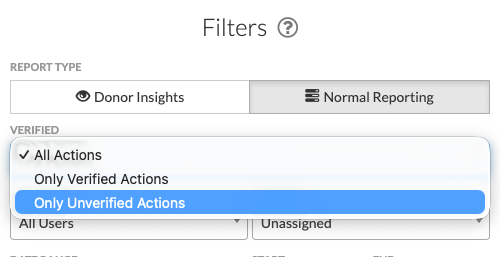
Step 1: Filter for Unverified Actions
- Navigate to Actions module.
- Click 'Filters'.
- Under Verification Status, select 'Only Unverified Actions'.
- Click 'Apply'.
- Feed shows only unverified actions requiring review.
Action detail view with verification option
Part 3: Reviewing an Action for Verification
Step 1: Click on an Action
- From the unverified actions feed, click an action.
- The action detail view opens.
- Review all fields and information.
Step 2: Verify the Details
- Check constituent information is correct.
- Confirm action type matches the occurrence.
- Verify amount (for financial actions) against source.
- Check date is accurate.
- Review description for clarity and accuracy.
Step 3: Look for a Verify Button
- In the action view, locate the 'Verify' button.
Part 4: Marking an Action as Verified
If Everything Looks Good
- Click “Unverified”.
- Action status changes to 'Verified'.

Action marked as verified with status confirmation
Part 5: Batch Verification Workflows
For Organizations Processing Many Actions
- Go to Actions tab
- Filter for unverified actions
- Click on “Verify” button at the top
- Check the box 'Verify All' button
- All selected actions marked as verified simultaneously

Pro Tips
- Tip 1: Verify actions regularly, ideally within days of entry, while details are fresh.
- Tip 2: For financial actions, always compare against receipts or bank statements before verifying.
- Tip 3: Document any corrections made during verification for audit purposes.