![Humanitru-logo-green-horiz-lo-rez-web-main-RGB-3.png]](https://kbhelp.humanitru.com/hs-fs/hubfs/Humanitru-logo-green-horiz-lo-rez-web-main-RGB-3.png?height=40&name=Humanitru-logo-green-horiz-lo-rez-web-main-RGB-3.png)
What your spreadsheet should contain:
Your spreadsheet needs three columns: the first Constituent, the second Constituent, and the Relationship Type. Identify each Constituent by Constituent ID or Custom Field. The Relationship Type is how the second Constituent appears on the first Constituent's record, such as "Spouse" or "Employee."
If the relationship is different in each direction, add a Reverse Relationship Type column, such as "Employer" for an "Employee." If you leave it blank, the Relationship Type is used for both Constituents.
Rows without a Relationship Type are skipped. Use the same wording every time, since "Spouse" and "Wife" count as two different types.
Example rows:
| First Constituent ID | Second Constituent ID | Relationship Type | Reverse Relationship Type |
|---|---|---|---|
| 1024 | 2048 | Spouse | |
| 3150 | 1024 | Employee | Employer |
| 1024 | 4096 | Child | Parent |
How it works
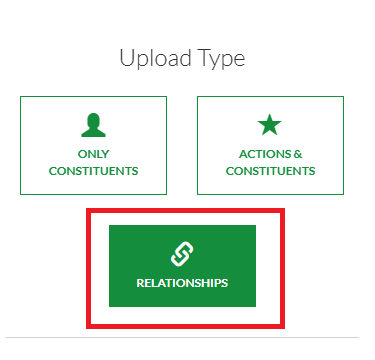
- Under Upload Type, choose Relationships.
- Upload your CSV, then choose how to match your existing Constituents:
- Match Pre-Existing Constituents by Constituent ID, or
- Match Pre-Existing Constituents by Custom Field
Note: Relationships requires an exact identifier (Constituent ID or Custom Field) on both sides. A wrong match creates a relationship between the wrong two people, and it won't show up as an error. Check your IDs before you upload.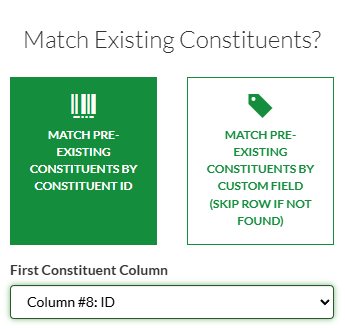
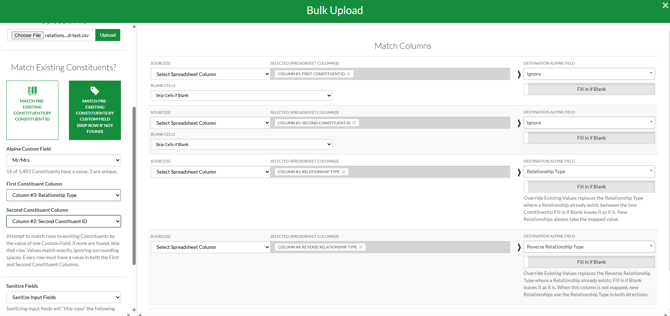
3. Choose your First Constituent Column and Second Constituent Column. These identify the two people in each relationship.
Match spreadsheet columns
Map your Relationship Type and Reverse Relationship Type columns. For each one, choose:
- Fill in if Blank (default): if a relationship already exists between the two constituents, it's left as-is; your mapped value is only used when a new relationship is created.
- Override existing values: replaces the relationship type on an existing relationship with your value.