![Humanitru-logo-green-horiz-lo-rez-web-main-RGB-3.png]](https://kbhelp.humanitru.com/hs-fs/hubfs/Humanitru-logo-green-horiz-lo-rez-web-main-RGB-3.png?height=40&name=Humanitru-logo-green-horiz-lo-rez-web-main-RGB-3.png)
Overview
This guide explains how to configure the WHEN trigger conditions for a stewardship touchpoint. The trigger defines what event or milestone must occur before Humanitru executes the automated delivery action.
When to Use This GuideUse this guide when you are creating a new touchpoint and need to define the trigger event, or when you want to modify the trigger conditions on an existing touchpoint.
Step-by-Step InstructionsPart A: Access the Trigger Configuration
- Navigate to Stewardship in the left-hand navigation menu.
- Click Configure on the touchpoint you want to edit, or create a new touchpoint by clicking Add Touchpoint.
- Locate the WHEN section in the configuration modal. This is where you define what triggers the automation.
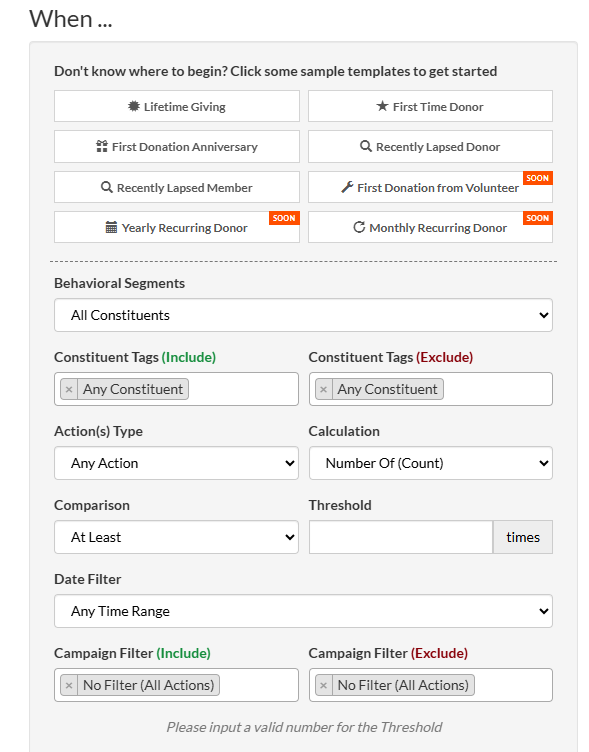
WHEN section highlighted
Part B: Select a Trigger Type
- Select from the templated triggers at the top of the screen or opt to build your own using the available fields.
- Prebuilt templates include options such as:
- First Time Donor (when a constituent makes their very first gift)
- First Donation Anniversary (on the annual anniversary of a constituent's first gift)
- Lifetime Giving (when a constituent's cumulative giving reaches a specified dollar amount)
- Recently Lapsed Donor (when a donor’s last gift was 15 months ago)
- Recently Lapsed Member (when the last membership payment was 15 months ago)
- Selecting a pre-built template will populate criteria that can then be edited to further segment your constituents for targeted communication.
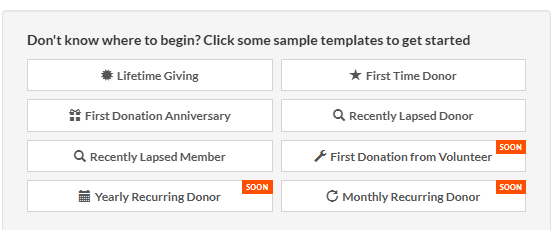
Pre-built Templates
Part C: Set Trigger Parameters
- Review the data selected in the Behavioral Segments to ensure that you have captured the constituents you would like to receive this communication.
- Use tag-based filters to narrow the scope of your trigger. For example, you can set the touchpoint to only fire for constituents who have the Major Donor tag or you can intentionally exclude constituents with a tag indicating that they have requested no email.
- Combining trigger types with tag filters lets you create highly targeted stewardship rules — for example, a $10,000 milestone celebration that only applies to individual donors, not corporate sponsors.
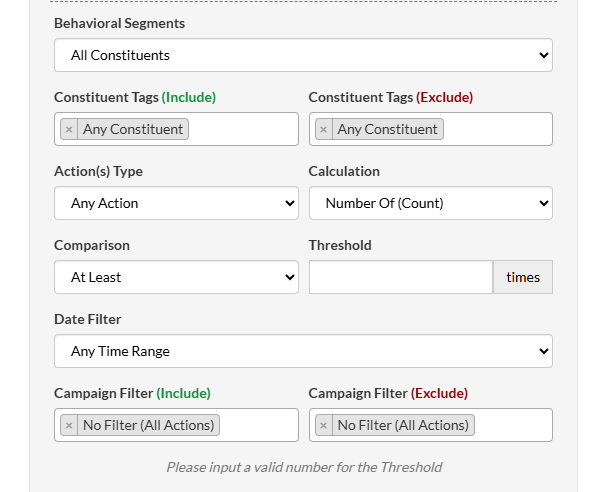
Behavior Segments
Pro Tips / Common Mistakes- If a trigger seems too broad, add a tag filter to narrow the audience. You can always remove the filter later to expand the touchpoint's reach.
- Test milestone triggers in Dry Run mode by manually creating a test donation that crosses the threshold. This confirms the trigger fires at the correct amount.
- Remember that triggers are evaluated in real time as new actions are logged. If you log a backdated donation, the trigger may still fire based on the current cumulative total.