![Humanitru-logo-green-horiz-lo-rez-web-main-RGB-3.png]](https://kbhelp.humanitru.com/hs-fs/hubfs/Humanitru-logo-green-horiz-lo-rez-web-main-RGB-3.png?height=40&name=Humanitru-logo-green-horiz-lo-rez-web-main-RGB-3.png)
Learn how to access detailed reports for specific Monthly Recap metrics, including filtering, sorting, and exporting data for analysis and strategic planning.
When to Use This GuideUse monthly reports to deep-dive into fundraising performance, understand donor demographics driving revenue, and export data for board presentations or strategic planning.
Accessing Reports from Monthly Recap
- Navigate to Insights > Monthly Recap.
- Select the appropriate Month for review (it will default to the current month).
- Locate the metric or metrics that you would like to review.
- Click the ‘View Report’ button.
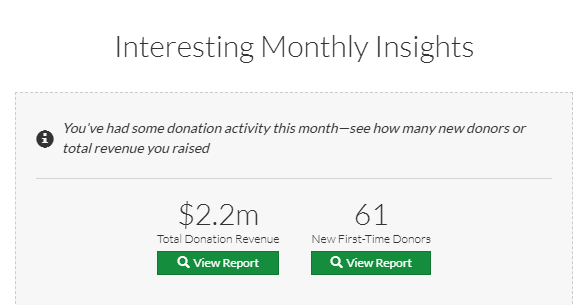
View Report button on Monthly Recap insight card
The report page opens, displaying detailed data for the selected metric and month.
Understanding Action Reports
Example: Total Donation Revenue Report
When you View Report for Total Donation Revenue:
- The report shows every donation received in the selected month in a list view on the left of the screen with a summary view on the right showing At A Glance statistics.
- Additional Filtering options are available on the lefthand side of the screen.
- Export fields can be selected per your needs including: Donor name, donation amount, Campaigns, donation type, date received, etc.
- At a Glance shows: Total revenue, average gift size, largest donation, and count of gifts.

Total Donation Revenue report with transaction list
Other Action Reports available in the Monthly Recap include:
- Lapsed (Donation) Revenue
- Total Membership Revenue
- Approximate Lapsed (Membership) Revenue
- New Added (Volunteer) Hours
- Lost (Volunteer) Hours
Understanding Constituent Reports
Example: New First-Time Donors Report
When you View Report for New First-Time Donors:
- The report lists all constituents who made their first donation in the selected month.
- Additional filters may be added using the Filters dropdown available on the upper right hand side of the screen.
- Output Columns can be selected from a wide range of fields including: Donor name, first donation amount, gift date, and email address.
- Click any column header (e.g., Donation Amount, Date, Donor Name) to sort the information.
- At A Glance Statistics can be added to review summary information:
-
-
Total Constituents
-
Total Donors
-
Total Donations
-
Total Revenue
-
Average One Time Donation
-
Average Per Donor Total Donations
-
Average Per Donor Total Revenue
-
Other Constituent Reports available in the Monthly Recap include:
- New Recurring Donors
- Lapsed Donors
- New First-Time Members
- Lapsed Members
- New Volunteers
- Lapsed Volunteers
Common Report Uses
Board Reporting: Export monthly revenue and new donor reports to show performance trends.
Donor Segments: Filter and export new donors to create thank you or welcome email campaigns.
Major Gift Pipeline: Filter for high-value gifts (amount > threshold) to identify prospects for follow-up.
Recurring Donor Growth: Track new recurring donors monthly to monitor predictable revenue growth.
Seasonal Analysis: Compare reports from the same month across multiple years to identify seasonal patterns.
Pro Tips
- Export Month-End reports immediately after month close to avoid data changes.
- Use filtered exports to create targeted email campaigns (e.g., welcome emails to new donors).
- Save exported reports in a folder for historical trend analysis.