![Humanitru-logo-green-horiz-lo-rez-web-main-RGB-3.png]](https://kbhelp.humanitru.com/hs-fs/hubfs/Humanitru-logo-green-horiz-lo-rez-web-main-RGB-3.png?height=40&name=Humanitru-logo-green-horiz-lo-rez-web-main-RGB-3.png)
When duplicate constituent records exist, merge them to maintain data integrity and avoid sending duplicate communications.
Part A: Identifying Duplicates- Navigate to the Constituents module.
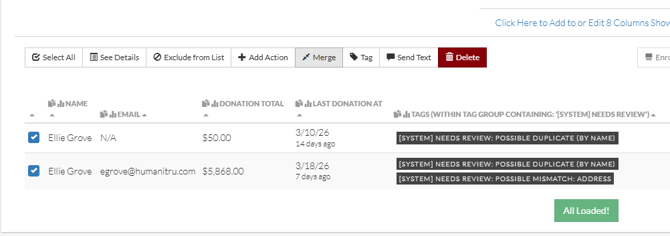
- Use Search or Filters to look for potential duplicates. If you have identified potential duplicates by running a system duplicate check, you may want to filter using Tags in the Tag Group of ‘[System] Needs Review’ that indicate possible duplicates.
- Duplicate records often have similar names, matching addresses, or identical email addresses.
Initiating the Merge Process
- Go to the Constituent module.
- Scroll down to the constituents.
- To select two records to merge, click the box to the left of the name. The order that the constituents are selected in matters. The first one selected will be Constituent #1. Selected records will show with a blue background and white check mark.
- Locate the "Merge" button in the toolbar above the list of constituents.
- Click the Merge button to open the merge dialog.
Part C: Comparing and Confirming Merge
Merge Comparison Screen
- The system displays both records side-by-side for comparison.
- For each field, select which value to keep or provide a merged value.
- If the constituents have different email addresses, be sure to move the secondary email to the Secondary Email field in the Merged Result.
- Review the merged record preview before confirming.
- To permanently merge the records, click ‘Merge & Close’ or choose ‘Merge and View’ to open the newly merged record.
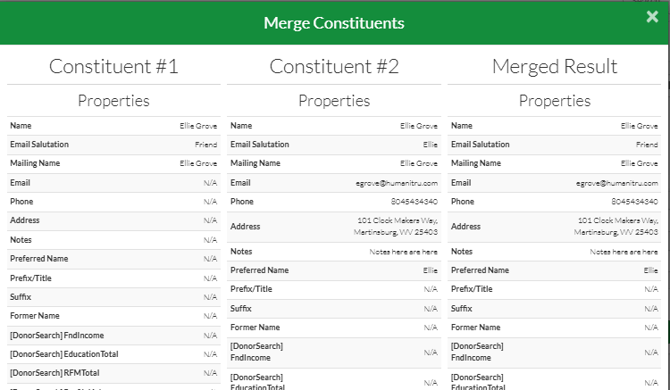
Merge comparison showing field selection
Merge Considerations
- All Actions from both records are preserved.
- Duplicated tags and relationships are consolidated.
- Pro Tip 1: Always review both records carefully before confirming a merge
- Pro Tip 2: Use the Duplicate Check functionality regularly to maintain your data health