![Humanitru-logo-green-horiz-lo-rez-web-main-RGB-3.png]](https://kbhelp.humanitru.com/hs-fs/hubfs/Humanitru-logo-green-horiz-lo-rez-web-main-RGB-3.png?height=40&name=Humanitru-logo-green-horiz-lo-rez-web-main-RGB-3.png)
Overview
As your organization evolves, your tag structure may need adjustment. This guide covers managing, reorganizing, and archiving tags and tag groups.
Part 1: Viewing Your Tag Inventory- Use the icon labeled ‘Tags’ on the lefthand navigation bar to maintain your Tags.
- You will see all of your organization’s Tag Groups listed as well as all of your Tags listed underneath.

Tag Management Interface
Part 2: Editing TagsModify existing tags to refine their definitions or rename them:
- Find the tag you want to edit. Use the Search bar on the lefthand side of the screen if needed to help locate the tag you need.
- When your mouse hovers over the right hand side of a tag, several icons become visible to enable you to edit and work with the tag in general.
- Delete (Trashcan) - Completely removes the Tag from your database
- Edit (Pencil) - Allows the Tag to be renamed
- Favorite (Star) - Allows the Tag to show in Favorites list
- Details (List) - Creates Actions Report of all Constituents with the Tag
- Constituents (Outline of person) - Create Constituent Report of all Constituents with the Tag
- Force Sync Email List Now (Paper Airplane) - Pushes to Email tool Immediately
- Sync to Email Marketing Nightly (Arrows in a circle) - Syncs Tag to Email tool Nightly
- Exclude from Donor Insights (Eye Open/Eye Closed) - Excludes Tags from Weekly Nudges and Prospects in Donor Insights
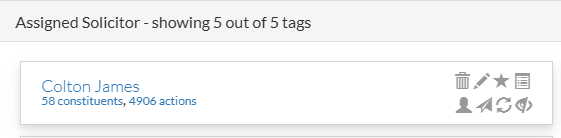
Edit Tag Options
Note: Renaming a tag updates it across all constituent records automatically.
Part 3: Merging Tags- To merge Tags from within the same Tag Group, first identify the Tag that you would like to maintain.
- Click the edit button (the pencil icon) on the Tag that you are merging into the Tag that you are maintaining.
- Change the name of the Tag that you would like to remove to the same name as the Tag you are maintaining.
- A popup will tell you that the Tags will be merged. When you click OK, the two will be merged and all Constituents will be updated accordingly.
- Perform quarterly audits of your tag structure
- Document changes to your tag taxonomy
- Archive unused tags rather than deleting them
- Create clear naming conventions and enforce consistency
- Communicate major tag changes to your team
- Set a schedule for quarterly tag audits to keep your system clean and organized.
- Use consistent naming conventions (Title Case or all lowercase) across all tags.
- Document your tag taxonomy in a shared resource for team reference.