![Humanitru-logo-green-horiz-lo-rez-web-main-RGB-3.png]](https://kbhelp.humanitru.com/hs-fs/hubfs/Humanitru-logo-green-horiz-lo-rez-web-main-RGB-3.png?height=40&name=Humanitru-logo-green-horiz-lo-rez-web-main-RGB-3.png)
Pledges are promised donations. This guide covers logging pledges and tracking payments against the pledge amount until it's fully satisfied.
Part 1: Understanding Pledges
What is a Pledge?
A Pledge action records a donor's promise to give a certain amount over time, typically:
- Multi-installment gifts (e.g., $10k per year for 3 years)
- Bequests or deferred gifts
- Capital campaign commitments
- Pledges with specific payment schedules
Pledge vs. Donation
Key difference:
Donation: Money has been received and deposited.
Pledge: Promise to give; payment(s) still expected.
Part 2: Logging a New Pledge
Step 1: Click on the “Action +” button
- Click 'Add Manual Action'.
- Choose 'Donation Made' from Action Type.
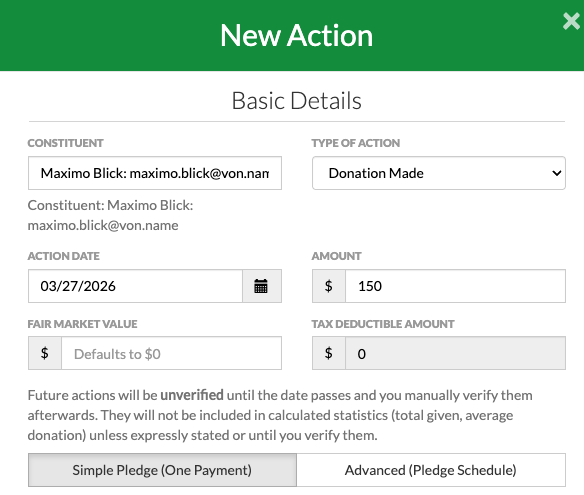
Pledge form with payment schedule and total pledge amount
Step 2: Enter Pledge Information
Constituent: The person making the pledge.
(Total Pledge) Amount: Full amount promised (e.g., $30,000).
Action Date (Future Date for Pledge): When did the donor make the commitment (in the future)/
Step 3: Enter Payment Schedule
- (Make sure the Action Date is set for a future date)
- Next, click 'Advanced (Pledge Schedule)'.
- Select Payment Schedule.
- Click “Specify Each Payment Amount and Frequency”
- Enter Frequency and first Payment Amount.
- Click “Re-Generate Payment Schedule”.
- System calculates total to ensure it matches pledge amount.
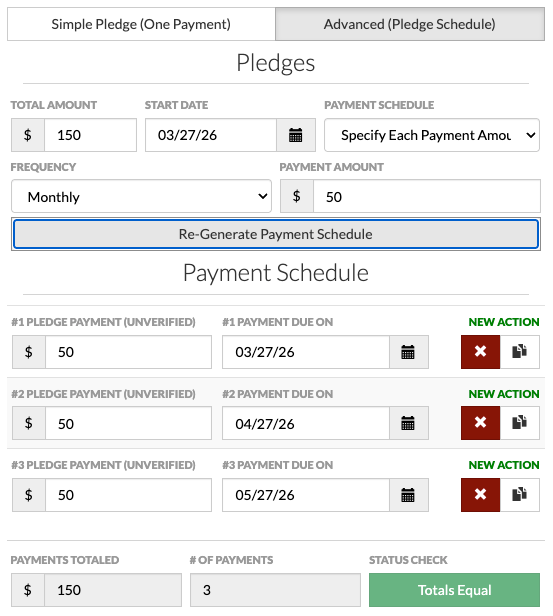
Payment schedule showing installments and due dates
Step 4: Save the Pledge
- Review the entire pledge and schedule.
- Click 'Save'.
- Pledge is logged in the system.
- Payment schedule is now tracked.
Part 3: Tracking Payments Against the Pledge
Recording a Payment
When the donor makes a payment:
- Go to the Donation Action of the correct date.
- Click “Unverified”.
- Then the Donation Action will change to “Verified” (which means it has been received).