![Humanitru-logo-green-horiz-lo-rez-web-main-RGB-3.png]](https://kbhelp.humanitru.com/hs-fs/hubfs/Humanitru-logo-green-horiz-lo-rez-web-main-RGB-3.png?height=40&name=Humanitru-logo-green-horiz-lo-rez-web-main-RGB-3.png)
Overview
Exporting actions data into spreadsheets is essential for analysis, reporting to leadership, and system integration. This guide walks through filtering, exporting, and using your data.
Part 1: Understanding Export CapabilitiesWhat Can You Export?
You can export any filtered view of your actions:
- All actions in the system
- Actions filtered by type (only donations, RSVPs, etc.)
- Actions from specific date range
- Actions with specific verification status
- Any combination of the above filters
Export Format
Actions export in CSV (Comma-Separated Values) format for:
- Excel, Google Sheets, or spreadsheet software
- Database applications
- Data analysis tools (Tableau, Power BI, etc.)
- Any text editor
Step 1: Open Actions Tab
- Navigate to Actions.
- You'll see the activity feed.
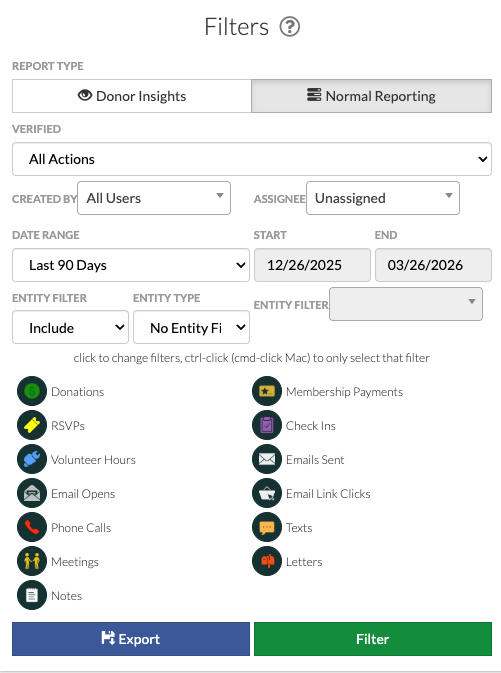
Actions module with export button visible
Step 2: Apply Filters
- Click icon filters.
- Set desired filters.
Scenario 1: All Donations from 2025
- Action Type: Donation only.
- Date Range: 1/1/2025 to 12/31/2025.
- Verification Status: 'Verified Only'.
Scenario 2: Unverified Actions This Month
- Verification Status: Unverified Only.
- Date Range: This Calendar Month.
Scenario 3: All Actions for Specific Constituent
- Entity Filter: Type constituent's name.
- Leave other filters as needed.
Step 1: Find Export Button
- After applying filters, find 'Export' button.
- Labeled 'Export'.

Export dialog with column selection and file format options
Step 2: Click Export
- Click the Export button.
- Export field options panel appears.
This allows column customization.
Column Selection Screen Appears
- Check boxes for columns to include.
- Uncheck columns you don't need.
Step 3: Downloading File
- Click 'Export'.
- Browser download dialog appears.
- File named 'Actions_Export_[Date].csv' or similar.
- Choose save location.
- Click 'Save'.
In Excel or Google Sheets
- Locate downloaded CSV file.
- Double-click to open or right-click > 'Open With'.
- Spreadsheet displays with data in rows and columns.
Data Layout
- Row 1 (header): Column names
- Rows 2+: Action records, one per row
Task 1: Sum Donations by Fund
- Filter Action Type to 'Donation'.
- Export all donations.
- Create pivot table or use SUMIF to sum by Fund.
- Shows total donations per fund.
Task 2: List Top Donors
- Export all donations.
- Use pivot table to sum per constituent.
- Sort by amount descending.
Task 3: Monthly Summary Reports
- Export actions for desired time period.
- Use formulas: =SUM(), =COUNTIF(), =AVERAGE().
- Create charts for leadership reporting.