![Humanitru-logo-green-horiz-lo-rez-web-main-RGB-3.png]](https://kbhelp.humanitru.com/hs-fs/hubfs/Humanitru-logo-green-horiz-lo-rez-web-main-RGB-3.png?height=40&name=Humanitru-logo-green-horiz-lo-rez-web-main-RGB-3.png)
Within Alpine, we have Actions, which have the following (relevant) properties:
- ID: This is system-defined, and globally unique within the Humanitru platform across all actions.
- Type: For transactions, we have three types that carry monetary information. These are: donation, ticket, membership, which correspond to: donations, ticket purchases, and membership payments, respectively.
- These types are defined system-wide and should be considered static, as much of our reporting/analytics relies on these hard-coded values
- More specific "sub-types" are handled via our system of "Campaigns", which are labels that can be attached to Actions. For example, a Campaign of "Sponsorship" may be applied to any Action of type donation, to denote that it's a sponsorship donation
- Amount: This is the posted amount of the transaction. We have been communicating that this is what the constituent gives, not what is received by the nonprofit. This is because our platform is not an accounting platform—information like tax-deductible amounts, splitting income, etc. are accounting concerns, not development concerns.
- Action Date: This is the posted date of the transaction
- Constituent: This links to another entity, called the Constituent. Fields relevant here are
- ID: This is system-defined, and globally unique within the Humanitru platform across all constituents
- Name: This is the human-readable name of the Constituent. This is usually their full name.
- N.B. this name field is non-unique, meaning that Constituents may share names. This is important when mapping to QB
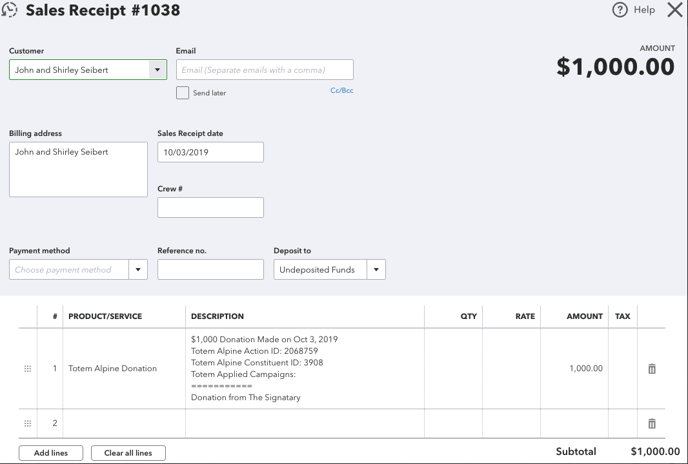
So how do these translate into QB? Here's how: every Humanitru Action will have a corresponding QB Sales Receipt. Here are the fields within QB SalesReceipt: See the screenshot example at the bottom of this document.
- CustomerRef: This corresponds to our Humanitru Constituent
- We will search the QB Customer database by DisplayName using our Humanitru Constituent Name as an exact match. For example, if within Humanitru, a Constituent has the name "John Doe", we will look within QB for a Customer with the DisplayName "John Doe"
- If none is found, then we will create a QB Customer with the DisplayName matching to the Humanitru Constituent Name
- N.B. Because QB enforces unique DisplayNames, and Humanitru doesn't, here is a problem: Customers with the same Name
- Within Humanitru, you may have Constituent ID: 23 have the name "Mary Sue", and have Constituent ID: 29 also have the name "Mary Sue". They may have separate actions, etc.
- However, when it maps into QB, they will be mapped to the same Customer!
- Alternative options, such as attaching the Constituent ID to the Customer (e.g. "Mary Sue ID: 23") were deemed confusing and not immediately obvious on what logic is being applied.
- For example, if you rename the Customer within QB—this will break the mapping.
- Since the sync only creates the corresponding SalesReceipt once, the accountant will have an opportunity to fix this on a case-by-case basis.
- We are not the only ones that run into this issue: see customer complaints, developer complaints, and even WooCommerce doesn't have an elegant solution to this
- TxnDate: This corresponds to the Humanitru Action Date
- Lines: We will only create one Line within the SalesReceipt
- Product/Service: This corresponds to the QB Item
- Alpine records three different types of actions that correspond to transactions (see above). Again, these are: donation, ticket, membership
- We will attempt to find these Items already created within QB, with the following names: "Humanitru Alpine Donation", "Humanitru Alpine Ticket", "Humanitru Alpine Membership"
- If those items do not exist, we will create these Items
- However, these items must have an IncomeAccountRef associated
- We will look for an Account named "Humanitru Alpine Income"
- If no Account with that name is found, we will create one as an Income Account
- Description: We will attempt to load this field with as much relevant information as possible. Things like the Humanitru Action ID, Humanitru Action Constituent ID, Humanitru Action Campaigns, and the original Humanitru Action Notes field will all be represented here.
- Amount: The amount of the transaction,
Again, this integration, unless otherwise specified, will run nightly. Here's how it works:
- The integration knows when the last time it was ran (if ever). This is known as the last sync time. If this does not exist (e.g. first time), then it will be set to 100 years ago.
- Every morning (between 1–4 AM), start the integration
- Record the current timestamp, this is known as the integration start time
- Fetch all actions that were created since last sync time
- Create corresponding SalesReceipts for each one of these Actions
- Note that we will make no effort to match Actions to pre-existing SalesReceipts. This is because attempting to do so is too ambiguous without stringent matching criteria, and would involve more problems than solving
- Update the integration's last sync time with the integration start time
- This way, if actions were created between the integration starting to sync, and completing, the next night it will catch these